
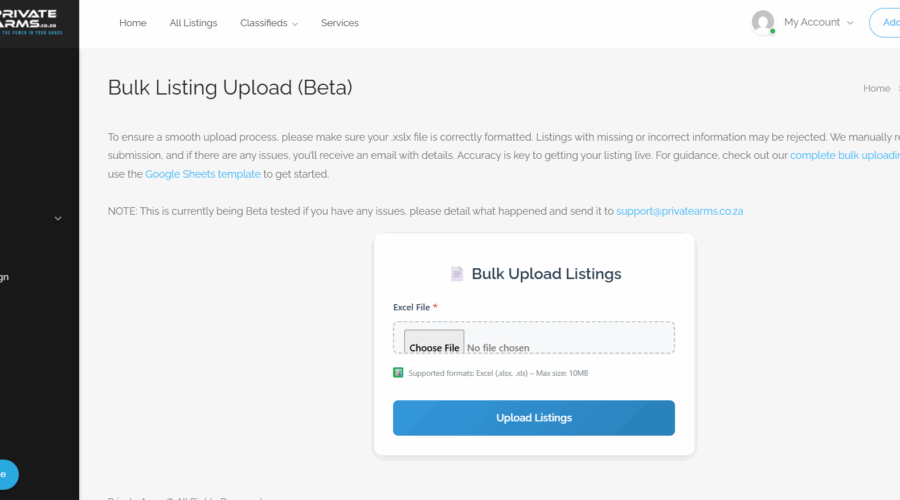
How To Do Bulk Uploads: User Guide
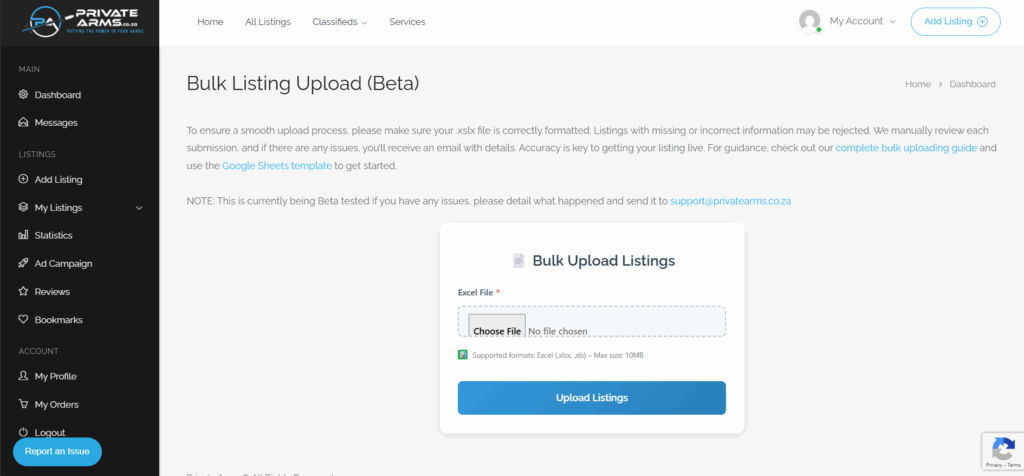
This guide will help you correctly fill in the Bulk Listing Upload Google Sheet for uploading multiple listings to the platform.
Before You Begin
- Each column header in the sheet contains a help tooltip.
Simply hover over the column title to view detailed instructions, examples, and notes for that specific field. These tooltips are especially useful if you’re unsure about what information to enter in a column.
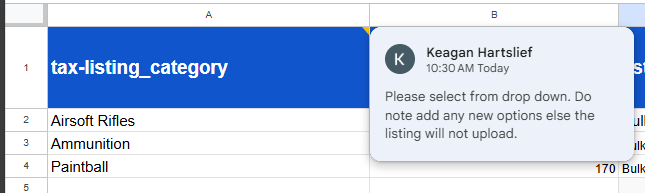
- Always use the dropdowns provided & don’t edit or add new values.
- Do not change or rename any of the column titles.
- Do not add, delete, or rearrange any columns.
- Only use the categories, brands, and calibers already in the list.
- Incorrect formatting or additional fields will cause upload errors.
Step 1: Make Your Own Copy
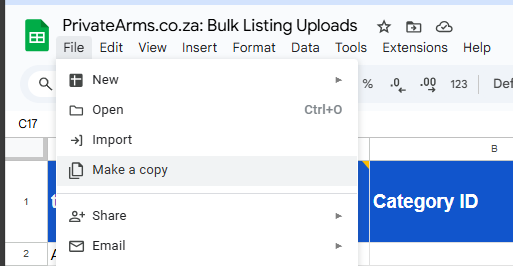
- Open the Bulk Listing Upload Sheet.
- Click on File → Make a Copy.
- Save it to your own Google Drive.
💡 This ensures you can edit and save your listings using your own information.
Step 2: Selecting Categories
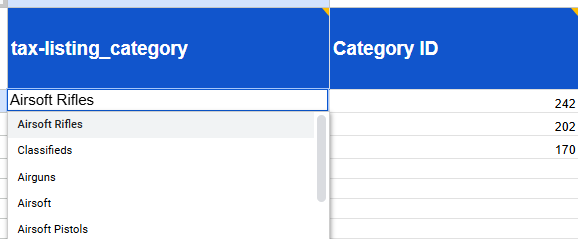
- In the Category column, choose from the preloaded list of available categories.
Please try and select the most detailed category and not top level. For Example if uploading a glock Don’t select “Firearm” Or “Hand gun” the correct way would be to select “Semi-Automatic Handgun” - Do not add or edit any categories manually as this will cause upload errors.
- The Category ID in column B will generate automatically after selection.
⏳ Please allow a few seconds for the ID to appear. You don’t need to edit or change it.
Step 3: Filling Out Listing Details
| Column | Field Name | Instructions |
|---|---|---|
| C | Listing Title | Add the full title of your listing (e.g., Glock 19 Gen 5 9mm). |
| D | Classified Price | Enter the numeric price only (e.g., 9500). Do not include “R” or any currency symbols. |
| E | Listing Description | Write your standard listing description. Plain text is recommended. Be Descriptive as possible! |

Step 4: Adding Gallery Images
This section is important — please follow carefully.
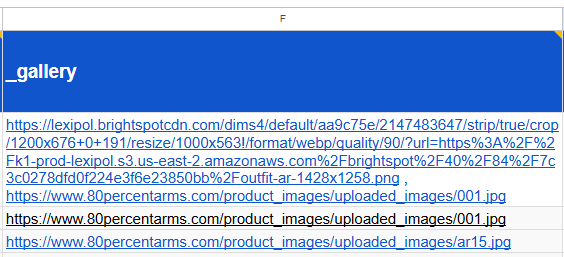
- Start by adding your featured image link first.
- Make sure the image link is publicly accessible (downloadable).
- You can use a Google Drive public link or an image hosted online.
- To add multiple images:
- Separate each link using space + comma + space, e.g.:
https://linktoimage1.jpg , https://linktoimage2.jpg , https://linktoimage3.jpg
- Separate each link using space + comma + space, e.g.:
- Ensure all links work before uploading. If the system can’t access them, your listing won’t upload.
Step 5: Selecting Brand and Caliber
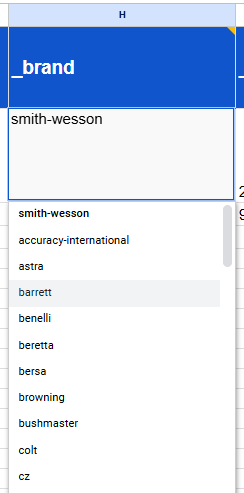
- Brand: Choose from the existing brand list in the dropdown.
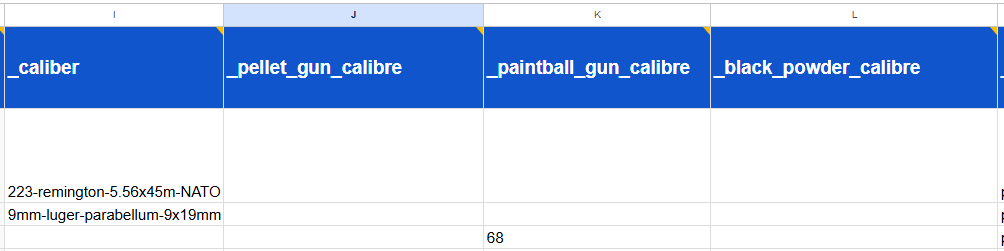
💬 If your brand is missing, let us know & we’ll update the list. - Caliber:
There are three caliber options to accommodate different item types:- Firearms: Use Caliber column only.Pellet Guns: Use Pellet Caliber column only.Paintball / Black Powder: Use their respective columns only.
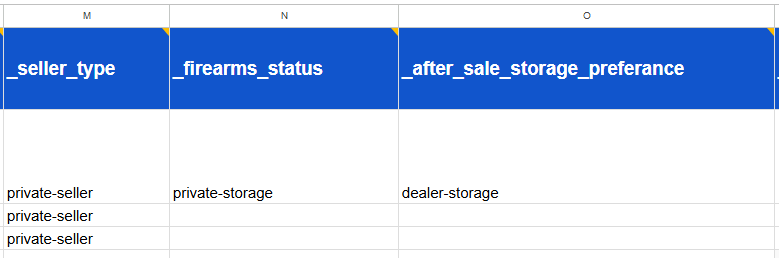
Step 6: Seller Information
| Field | Description |
|---|---|
| Seller Type | Choose from: Firearms Dealer, Private Seller, or General Store (non-dealer). |
| Status of Firearm | For firearms only — choose current status (Dealer Storage, Private Storage, etc.). |
| After-Sale Storage Preference | Select where the firearm should be stored after sale (e.g., Dealer Storage, Buyer Storage, etc.). |
Note: Firearm Status & After Sales Storage only need to be filled if you are wishing to upload a firearms listing.
Step 7: Address & Location
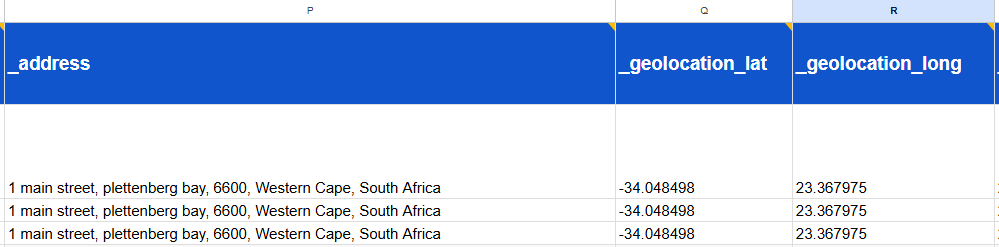
- Address: Enter your full address clearly, as you would for Google Maps. 🏡 Example: 123 Main Street, Pretoria, 0001, Gauteng, South Africa
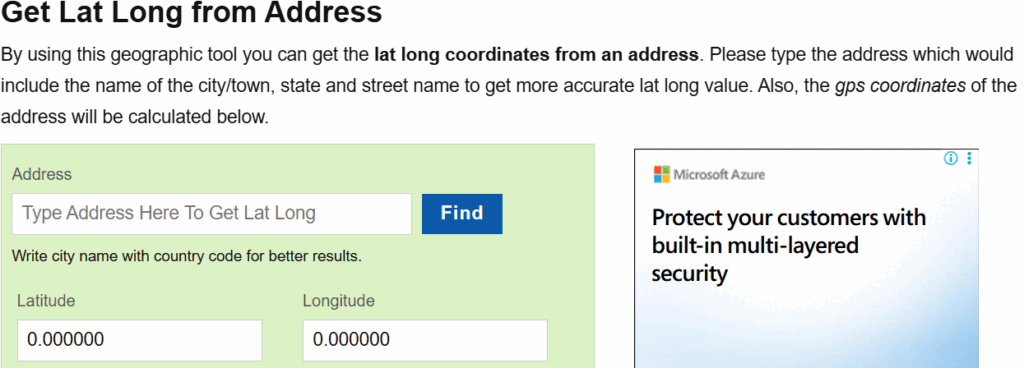
- Geolocation:
- Use the provided tool to get your latitude and longitude.
- Double-check that latitude and longitude are in the correct columns, or the map won’t display correctly.
Step 8: Contact Information
| Field | Instruction |
|---|---|
| Phone Number | Include country code without the plus (+). Example: 27821234567 |
| WhatsApp Number | Include country code without the plus (+). Example: 27821234567 |
| Enter your full email address (no spaces or capitals). |
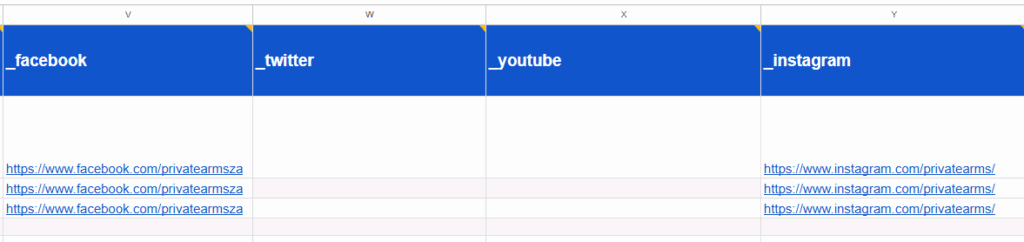
Step 9: Social Media Links
Add your links to the relevant social media pages:
- Twitter (X)
- YouTube
🔗 Please ensure each link is a full URL starting with
https://.
Example:
- ✅
https://www.facebook.com/yourbusinessname- ❌
facebook.com/yourbusinessname- ❌
@yourbusinessname
Full URLs help the system verify and display your social links correctly.
Step 10: Saving & Uploading the File
Once you’ve completed all your listings:
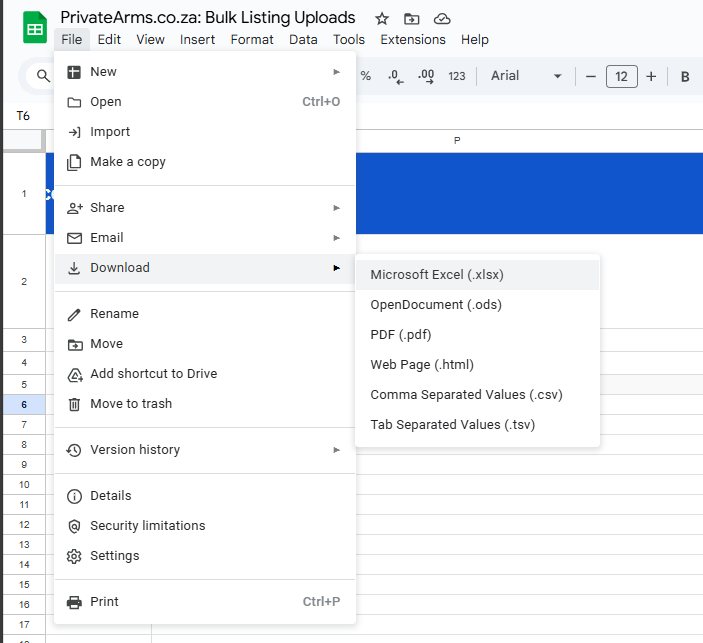
- Click File → Download → Microsoft Excel (.xlsx).
- Save the file to your computer — this is the version you’ll upload.
- Use this
.xlsxfile when uploading through the Bulk Upload Tool (link will be provided separately).
Column Break Downs
Use this reference to understand which fields are mandatory, conditional, or optional, and when they apply to specific listing types.
Column A – Listing Category
- Mandatory: ✅ Yes
- Details: Must be selected for every listing.
- Note: The listing will not upload without a valid category.
- Action: Select from the dropdown — do not type new categories.
Column B – Category ID
- Mandatory: ✅ Yes
- Details: Automatically generated once a category is selected.
- Action: Do not edit or delete this value.
Column C – Listing Title
- Mandatory: ✅ Yes
- Details: The name or title of the listing (e.g., Glock 19 Gen 5 9mm).
- Tip: Be descriptive and accurate to help buyers find your item.
Column D – Classified Price
- Mandatory: ✅ Yes
- Details: Enter numbers only — no “R” or symbols. Example:
9500
Column E – Listing Description
- Mandatory: ✅ Yes
- Details: Provide a detailed, informative description to help sell your item.
- Tip: Include key details, features, and condition notes.
Column F – Gallery (Images)
- Mandatory: ❌ No
- Recommended: ✅ Yes
- Details: Add image links where possible.
- Tip: Use accessible, downloadable URLs and separate multiple links with
,(comma + space). - Impact: Listings with images attract more views.
Column G – Classified Condition
- Mandatory: ✅ Yes
- Details: Choose the item’s condition (e.g., New, Used, Excellent, etc.).
- Action: Use the dropdown — do not type new values.
Column H – Brand
- Mandatory: ⚙️ Conditional
- Required For: Pellet guns, paintball guns, and firearms.
- Optional For: All other listing types.
- Action: Select from the dropdown.
- Note: Contact support if your brand is missing.
Column I – Caliber
- Mandatory: ⚙️ Conditional
- Required For: Firearms only.
- Action: Choose the correct caliber from the dropdown.
- Note: Leave blank for non-firearm listings.
Column J – Pellet Gun Caliber
- Mandatory: ⚙️ Conditional
- Required For: Pellet guns only.
- Note: Leave blank unless the listing is a pellet gun.
Column K – Paintball Gun Caliber
- Mandatory: ⚙️ Conditional
- Required For: Paintball guns only.
- Note: Leave blank unless the listing is a paintball gun.
Column L – Black Powder Caliber
- Mandatory: ⚙️ Conditional
- Required For: Black powder firearms only.
- Note: Leave blank for all other items.
Column M – Seller Type
- Mandatory: ✅ Yes
- Details: Choose from:
- Firearms Dealer
- Private Seller
- General Store (non-dealer)
Column N – Firearm Status
- Mandatory: ❌ No
- Recommended: ✅ Yes
- Details: Indicates whether the firearm is in dealer or private storage.
- Note: For firearms only.
Column O – After-Sale Storage Preference
- Mandatory: ❌ No
- Recommended: ✅ Yes
- Details: Where the firearm should be stored after sale (e.g., dealer, buyer, etc.).
- Note: For firearms only.
Column P – Address
- Mandatory: ✅ Yes
- Details: Enter your full and accurate address.
- Tip: Use the same format as Google Maps for best results.
Column Q – Geolocation (Latitude)
- Mandatory: ✅ Yes
- Details: Enter your latitude value from the geolocation tool.
- Warning: Must be placed in the correct column.
Column R – Geolocation (Longitude)
- Mandatory: ✅ Yes
- Details: Enter your longitude value from the geolocation tool.
- Warning: Must be placed in the correct column.
Column S – Phone Number
- Mandatory: ✅ Yes
- Details: Include country code without the plus (+). Example:
27821234567
Column T – WhatsApp Number
- Mandatory: ❌ No
- Recommended: ✅ Yes
- Details: Same format as phone number (no plus sign).
- Benefit: Allows potential buyers to contact you easily.
Column U – Email
- Mandatory: ❌ No
- Recommended: ✅ Yes
- Details: Add your email address in lowercase with no spaces.
- Benefit: Adds credibility and an extra contact option.
Columns V–Y – Social Media Links (Facebook, Twitter/X, YouTube, Instagram)
- Mandatory: ❌ No
- Recommended: ✅ Yes
- Details: Add your social media links for brand visibility.
- Format:
- Must be a full URL starting with
https://. - Example:
- ✅
https://www.facebook.com/yourbusinessname - ❌
facebook.com/yourbusinessname - ❌
@yourbusinessname
- ✅
- Must be a full URL starting with
- Tip: Include at least one social link to help build trust with buyers.